
Locked out a key executive right before a major meeting? Trying to enroll a new device, but your meticulously crafted Conditional Access policies are blocking the way? In these high-pressure moments, the critical question becomes: can you create a temporary bypass for conditional access Intune without compromising your entire security posture? The answer is yes, but it demands a strategic, security-first approach that protects your organization from unnecessary risk.
The official documentation can feel like a labyrinth, and the fear of accidentally creating a permanent security hole is very real. This guide is designed to eliminate that uncertainty. We will walk you through the safest methods for implementing controlled, temporary exceptions in Microsoft Intune and Entra ID. You’ll learn not just the ‘how,’ but the ‘why’-understanding the principle of least privilege, setting up proper auditing, and confidently resolving access issues without opening the door to new threats. Our goal is to empower you to solve immediate problems while maintaining long-term operational stability.
Key Takeaways
- Master the recommended method for creating a bypass by using targeted exclusions within your Conditional Access policies, ensuring you maintain control without disabling overall security.
- While the answer to “can you create a temporary bypass for conditional access intune” is yes, this guide details the critical security procedures you must follow to avoid exposing your organization to unnecessary risk.
- Proactively prevent lockouts and the need for emergency bypasses by leveraging Entra ID’s ‘Report-Only’ mode and ‘What If’ tool to safely test policy impacts before deployment.
- Every exclusion creates a potential security gap; learn the essential best practices, such as time-limiting the bypass and requiring documented approval, to manage and minimize this increased risk effectively.
Why and When to Bypass Conditional Access: Common Scenarios
In a modern Zero Trust security framework, Conditional Access policies are the gatekeepers of your corporate data. Deliberately bypassing these policies is a serious action that requires careful consideration. However, the goal is not to create security gaps but to strike a crucial balance between robust protection and operational necessity. A planned, temporary exclusion is a standard administrative tool used to ensure business continuity, not weaken your security posture.
The question isn’t just about security; it’s about effective IT management. When administrators ask, “can you create a temporary bypass for conditional access intune?”, they are often looking for a controlled method to solve a specific problem. Understanding the legitimate scenarios for a bypass is the first step toward implementing them securely. These situations typically fall into three main categories.
Scenario 1: New Device Enrollment (The ‘Chicken-and-Egg’ Problem)
A common challenge arises when a policy requires devices to be “marked as compliant” in Intune before accessing resources. A brand-new device, fresh out of the box, cannot meet this condition because it hasn’t been enrolled yet. This creates a classic ‘chicken-and-egg’ problem. The solution is a targeted exclusion within your Conditional Access policy that allows devices to access only the necessary Microsoft Intune enrollment services, ensuring the security process can begin without compromising wider access.
Scenario 2: Break-Glass Administrator Access
A ‘break-glass’ account is a non-personal, highly privileged account used exclusively for emergencies. Its primary purpose is to regain administrative access if a misconfigured policy accidentally locks everyone-including all other administrators-out of your environment. To function as a reliable safety net, this account must be permanently excluded from all Conditional Access policies. Its use should be heavily monitored, with immediate alerts triggered upon any sign-in attempt.
Scenario 3: Troubleshooting Application or User Access Issues
Occasionally, a correctly intended policy may have an unintended side effect, blocking a legitimate user from a critical application. To diagnose the issue, an administrator may need to temporarily place the affected user in an exclusion group for that specific policy. This is a short-term diagnostic step to confirm if the policy is the root cause. Once the problem is identified and the policy is adjusted, the user must be promptly removed from the exclusion group to restore the intended security controls.
The Safest Method: Using Exclusions in Conditional Access Policies
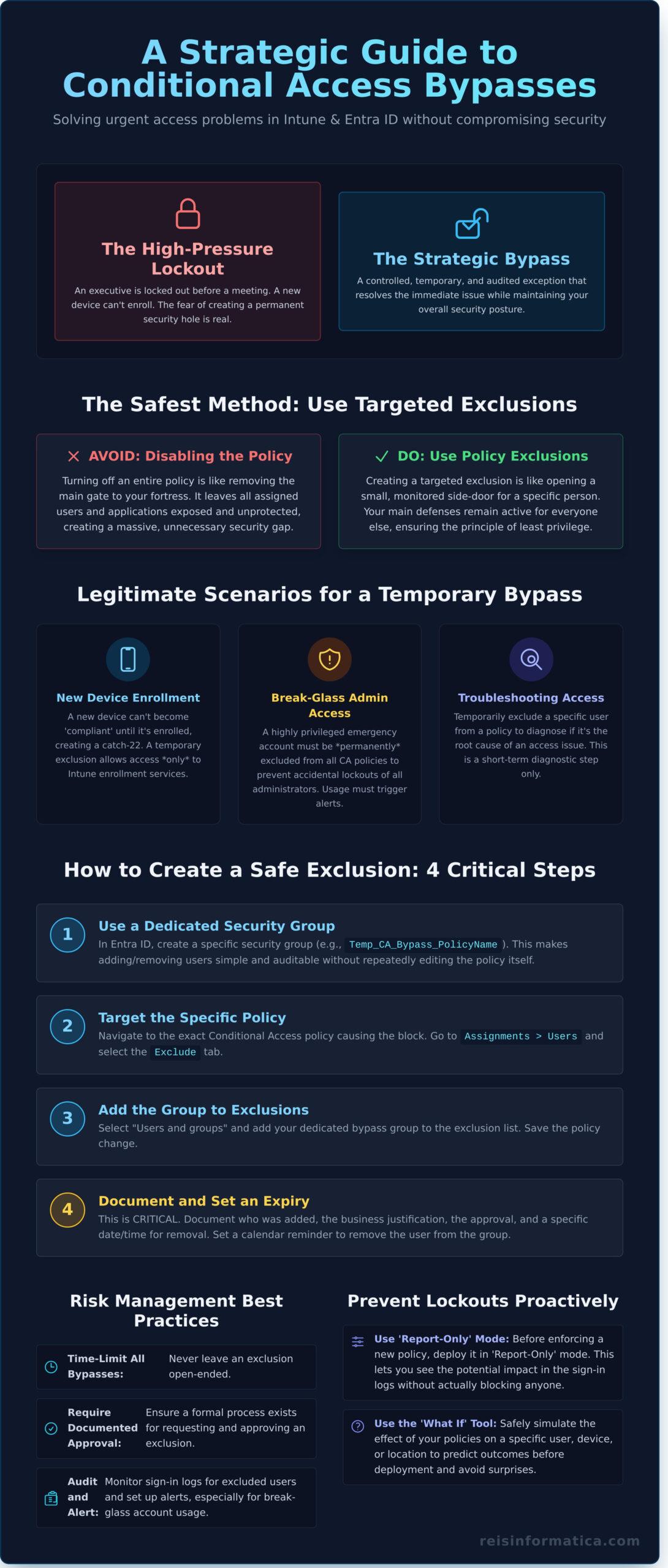
When you need to grant temporary access, your first instinct might be to disable a policy. However, a far more secure and controlled approach is to use exclusions. This is the primary, Microsoft-recommended method for managing exceptions. Instead of turning off your security fence entirely, you are simply creating a temporary, monitored gate for a specific need. This ensures your overall security posture remains intact while providing necessary flexibility.
The entire process is managed within the Microsoft Entra admin center, under the Conditional Access policies section. The key to success is precision: identifying the exact policy that is blocking access and modifying only that one. A broad approach can inadvertently open security gaps, which is why a surgical exclusion is always the superior strategy.
Step-by-Step: Excluding Specific Users or Groups
This is the most direct and common way to grant a bypass. By targeting a specific user account or a pre-defined group, you limit the exception to only those who absolutely need it. For optimal management and auditing, we strongly advise creating a dedicated security group in Entra ID (e.g., “Temp_CA_Bypass”) for this purpose. This makes it simple to add and remove users without modifying the policy each time.
- Navigate to the target policy and select Assignments > Users.
- Click on the Exclude tab.
- Select “Users and groups” and add the specific user or your temporary bypass group.
- Crucially, document this change. Note who was excluded, the business reason, and an expiry date for the exclusion. For a more detailed guide, review Microsoft’s official documentation on excluding users, which provides a foundational understanding.
Step-by-Step: Excluding Based on Device Filters
For scenarios where the issue is tied to a specific machine rather than a user, device filters offer a powerful solution. So, if you’re asking, “can you create a temporary bypass for conditional access intune for a non-compliant but critical device?”, the answer is yes. This is more advanced but allows for incredible granularity, ensuring the policy is only bypassed on the intended hardware.
- In your policy, navigate to Conditions > Filter for devices.
- Set “Configure” to Yes and choose to “Exclude filtered devices from policy.”
- Create a rule using device properties. For example:
device.displayName -eq "Boardroom-Kiosk-01". - This is perfect for service accounts or dedicated hardware like meeting room systems or servers that cannot meet standard compliance checks.
Step-by-Step: Excluding Based on Trusted Locations
This method allows you to bypass policies when users are connecting from a known, secure network, such as your primary corporate office. You first define these networks as “Named Locations” using their public IP address ranges. While effective, this approach carries inherent risk, as it exempts anyone at that location.
- In your policy, go to Conditions > Locations.
- Set “Configure” to Yes, then navigate to the Exclude tab.
- Select “Selected locations” and choose the pre-defined Named Location for your corporate network.
- Use with caution: This bypasses the policy for all users and devices at that location. It assumes the physical and network security of that location is strong enough to compensate for the relaxed conditional access.
Planning and Testing: Report-Only Mode and the ‘What If’ Tool
The most effective way to handle a security emergency is to prevent it from happening in the first place. A mature IT management process prioritizes proactive validation over reactive fixes. Most lockouts or access issues stem from misconfigured Conditional Access policies-a problem that can be entirely avoided with proper testing. By leveraging the tools built directly into Microsoft Entra ID, you can deploy new security controls with confidence, ensuring they enhance security without disrupting business continuity.
This proactive approach eliminates the frantic need for last-minute solutions. Instead of asking “can you create a temporary bypass for conditional access intune” during a crisis, you will have already validated every policy’s impact.
Using Report-Only Mode to Safely Test New Policies
Report-only mode is your primary safety net when introducing or modifying a Conditional Access policy. It allows the policy to run in a passive audit state, evaluating all sign-in attempts against its criteria and logging the potential outcome without actually enforcing any controls. This provides invaluable, real-world data on how a policy will behave once enabled.
To use it, set the policy’s Enable policy toggle to Report-only. We recommend letting it run for a full business cycle-several days to a week-to capture diverse user scenarios. You can then analyze the results in the Entra ID sign-in logs, which clearly show which users would have been impacted.
Using the ‘What If’ Tool to Predict Policy Impact
The ‘What If’ tool is a powerful simulator that allows you to predict the impact of your Conditional Access policies on demand. It is the perfect instrument for validating specific scenarios, such as confirming that a break-glass account is correctly excluded from an MFA policy. This tool helps you answer precisely what will happen for a given user, app, and location without waiting for a real sign-in event.
You can access the tool in the Entra admin center and input a specific user, cloud application, and conditions like IP address or device platform. The results will show exactly which policies would apply and which would be bypassed. This is the ideal way to confirm that your emergency access accounts are configured correctly, following the best practices outlined by Microsoft on How to exclude users from Conditional Access policies, before an actual emergency occurs.
This level of foresight is the cornerstone of a resilient and secure IT infrastructure. Expert IT strategy can prevent these emergencies. See how we help.
Critical Risk Management: Best Practices for Any Bypass
Creating an exclusion in a Conditional Access policy is a necessary tool, but it must be wielded with precision. Every exclusion, no matter how small or temporary, slightly widens your organization’s attack surface. The practices outlined below are not mere suggestions; they are the essential guardrails that separate a controlled, professional IT intervention from a reckless security risk. Adhering to these principles ensures that even when you must create a temporary bypass for Conditional Access in Intune, you maintain a strong, defensible security posture.
The Principle of Least Privilege: Minimize Your Exposure
The core of secure administration is granting only the minimum access required. When creating a bypass, this principle is paramount. Never exclude more users, devices, or applications than is absolutely necessary to resolve the specific issue. A surgical approach contains the risk.
- Target Individuals, Not Groups: Always prefer excluding a single, named user over an entire security group. This dramatically limits the potential impact if that account is compromised.
- Isolate the Application: If a single cloud app is the source of the problem, clone the problematic policy, apply it to the same user, but exclude only that specific application. This is far more secure than excluding the user from the entire policy stack.
Time-Boxing and Reminders: A Bypass Must Be Temporary
The word “temporary” is a strict rule, not a guideline. A bypass left open indefinitely becomes a permanent backdoor. To ensure this doesn’t happen, integrate the bypass into your formal operational processes.
- Set Immediate Reminders: As soon as you create the exclusion, set a calendar reminder for its removal. Do not rely on memory.
- Use Change Management: For any corporate environment, log the bypass in a change management ticket with a clearly defined start and end date. This creates an audit trail and enforces accountability.
Monitoring and Auditing: Trust but Verify
A bypass should never be an unmonitored event. Proactive monitoring is crucial to verify that the exclusion is being used as intended and only for the duration required. This vigilance is a cornerstone of modern cybersecurity.
- Use Entra ID Sign-in Logs: Regularly filter the Microsoft Entra ID sign-in logs for the excluded user. Look for events where the “Conditional Access” status shows “Not applied” to confirm when the bypass is being used.
- Alert on Critical Accounts: For emergency “break-glass” accounts, configure automated alerts in Azure Sentinel or Log Analytics to notify your security team the moment the account is used.
- Conduct Regular Audits: Implement a quarterly or semi-annual review of all Conditional Access policy exclusions. This proactive search helps you find and eliminate forgotten bypasses before they can be exploited.
Mastering the question of “can you create a temporary bypass for conditional access intune” involves more than technical steps; it requires a disciplined security mindset. Managing these policies requires constant vigilance. If you need a partner to help fortify your security posture and bring peace of mind to your IT operations, contact the experts at Reis Informática.
Navigating Conditional Access with Confidence and Control
As we have demonstrated, the answer to can you create a temporary bypass for conditional access intune is a definitive yes-but only when approached with a meticulous, security-first mindset. The key takeaway is to always favour targeted exclusions over disabling entire policies. Furthermore, leveraging tools like Report-Only mode for planning and adhering to strict risk management best practices are non-negotiable steps to protect your environment from unnecessary exposure.
Managing the intricate balance of user access and robust security in Microsoft Entra and Intune is a complex, ongoing responsibility. Instead of stretching your internal resources, partner with a team whose sole focus is safeguarding your digital assets. With proven expertise in Microsoft Entra and Intune, backed by 24/7 cybersecurity monitoring, we deliver the proactive IT strategy your US business needs to operate securely and efficiently. Managing complex security policies is a full-time job. Let our experts handle it for you.
Take control of your IT security with the confidence that comes from having a vigilant partner at your side.
Frequently Asked Questions
What’s the difference between a break-glass account and a regular admin account?
A break-glass account is a highly privileged, emergency-use-only account intentionally excluded from security policies like MFA and Conditional Access. Its purpose is to regain control if primary admins are locked out. In contrast, a regular admin account is for daily tasks and must be subject to all security policies. Think of it as the fire escape versus the main staircase-both provide access, but for very different, controlled circumstances to ensure business continuity.
Can I use a temporary access pass (TAP) instead of a full policy bypass?
Absolutely. A Temporary Access Pass (TAP) is an excellent, more secure alternative to a full policy exclusion. It allows a user to satisfy multi-factor authentication requirements for a limited time, which is ideal for onboarding or when a user loses their authenticator device. The key benefit is that the user is still evaluated against all other Conditional Access policies, such as device compliance or location, maintaining a much stronger security posture than a complete bypass.
How do I audit who has used a Conditional Access bypass?
Proactive auditing is critical. You can monitor bypass usage through the Microsoft Entra ID (formerly Azure AD) Sign-in logs. Filter the logs to show sign-ins where Conditional Access resulted in “Not Applied.” By examining the report details for these specific events, you can identify which user was excluded from which policy and at what time. Regularly reviewing these logs ensures any bypass is used as intended and for the approved duration, maintaining accountability.
Is it possible to bypass device compliance checks for a specific user?
Yes, you can create a temporary bypass for Conditional Access Intune policies, including device compliance. This is done by editing the specific policy that enforces compliance and adding the user to the “Exclude” list under the “Users and groups” assignment. This action allows that user to access resources from a non-compliant device. Remember, this should be a time-bound exception with a clear business justification, and the exclusion must be removed promptly.
What happens if I accidentally forget to remove a temporary user exclusion?
Forgetting to remove a user exclusion creates a significant and persistent security vulnerability. That account remains permanently exempt from the specific Conditional Access policy, effectively creating a backdoor that bypasses your security framework. This increases the risk of unauthorized access or a breach through that single, unprotected account. It underscores the importance of implementing a strict process for managing, tracking, and revoking all temporary exceptions to maintain your organization’s security.
Can I bypass Conditional Access for a specific country or location?
Yes, this is a common and secure scenario. Instead of excluding a user, you can configure Conditional Access to exclude a specific location. This is managed by defining “Named Locations” in Microsoft Entra ID, where you can specify trusted corporate IP address ranges or even entire countries. You then modify your policy to exclude this Named Location, granting access from an otherwise blocked region for legitimate business reasons without weakening user-specific security.