
If your company’s SharePoint feels more like a digital attic-cluttered with old files, creating confusion between what lives here versus in Teams, and sparking fears about who has access to what-you’re not alone. This digital disorganization creates frustrating information silos and undermines the very productivity these tools promise. The reality is that many businesses are only scratching the surface of what’s possible, leaving untapped potential on the table. But transforming this powerful platform is simpler than you think, and it all starts with mastering effective sharepoint team collaboration.
This guide is designed specifically for you: the business leader, not the IT guru. Forget complex jargon. We’re providing a clear, non-technical roadmap to turn SharePoint into your company’s high-performance collaboration engine. You will discover how to create a single source of truth for all your critical data, automate simple workflows to free up your team, and implement security settings that give you complete peace of mind. Get ready to unlock a new level of efficiency and focus for your entire organization.
Key Takeaways
- Shift your mindset from seeing SharePoint as just a file repository to understanding it as your company’s central collaboration hub.
- Clarify the distinct roles of SharePoint, Teams, and OneDrive to ensure your team uses the right tool for the right job, boosting efficiency.
- Implement effective sharepoint team collaboration by using advanced tools like Lists and Sites, while securing your data with clear governance principles.
- Get a practical, two-step roadmap for launching SharePoint successfully, ensuring your new structure reflects how your team actually works.
What is SharePoint Team Collaboration (and Why Should You Care)?
If you think SharePoint is just a glorified cloud folder, you’re missing the key to unlocking significant productivity gains. Many businesses see it as a simple replacement for their old, clunky server, but its true power lies in its function as a dynamic company intranet and collaboration hub. It’s a central, intelligent place where your team connects, communicates, and works together on projects.
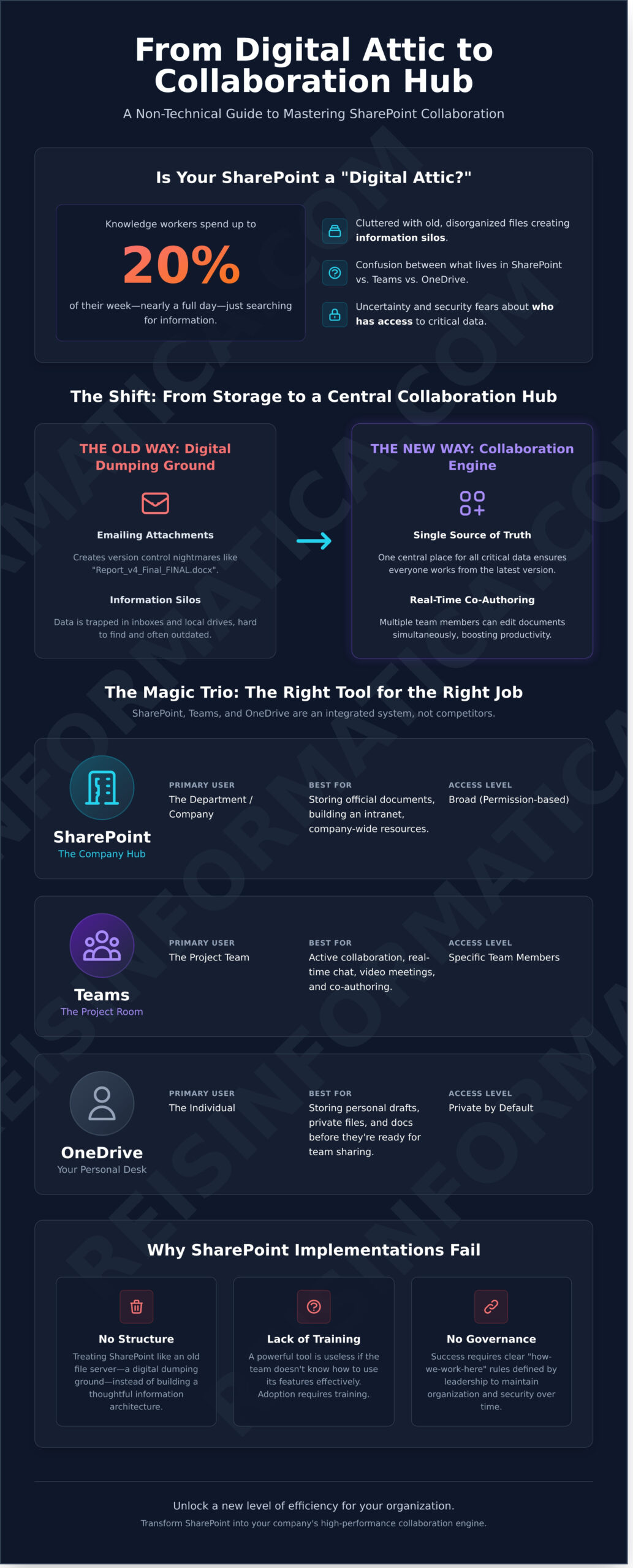
The financial impact is undeniable. Studies show that knowledge workers can spend up to 20% of their time-nearly a full day each week-just searching for internal information. Effective sharepoint team collaboration transforms that wasted time into productive output. To see its full potential, it helps to understand What is SharePoint? at its core: a platform designed to create a single source of truth for your business data, eliminating confusion and ensuring everyone works from the most current information.
The Shift from Storage to Collaboration
Remember the chaos of emailing attachments with file names like “Final_Report_v4_edited_FINAL.docx”? That process is a productivity killer, creating version control nightmares and information silos. In today’s hybrid work environment, your team needs the ability to co-author documents in real-time. This modern approach ensures everyone is on the same page, literally. Properly configuring this environment is crucial, which is why many Canadian businesses rely on Managed IT services to take the technical burden off their plate, ensuring a seamless rollout.
Why Businesses Fail at SharePoint
The most common mistake is treating SharePoint like an old file server-a digital dumping ground. Without a thoughtful structure, it quickly becomes just as disorganized as the system it replaced. Success requires more than just storage space; it requires governance. Another pitfall is a lack of training. A powerful tool is useless if your team doesn’t know how to use it effectively. Success starts at the top, with leadership defining a clear “how-we-work-here” guide and championing the platform’s adoption to build a truly collaborative culture.
The Magic Trio: How SharePoint, Teams, and OneDrive Work Together
One of the biggest sources of confusion when adopting Microsoft 365 is understanding where one tool ends and another begins. To unlock powerful sharepoint team collaboration, it’s crucial to see SharePoint, Teams, and OneDrive not as competitors, but as a tightly integrated trio. Think of it like a physical office: SharePoint is the entire building with its secure filing cabinets, Teams is the collaborative meeting room where projects happen, and OneDrive is your personal, lockable desk drawer.
When you upload a file to a Teams channel, you’re not actually saving it “in Teams.” That file is automatically stored in a dedicated SharePoint site created for that team. Teams simply provides the conversational, user-friendly “front door” to access and work on those files together. Understanding this relationship is the first step toward a more organized and efficient digital workspace. To truly leverage these tools, it helps to understand their distinct roles. Southern Illinois University Edwardsville provides an excellent guide on How SharePoint, Teams, and OneDrive Work Together, but here’s a quick breakdown for your business:
SharePoint vs. Teams vs. OneDrive: A Quick Comparison
| Tool | Primary User | Best For | Access Level |
|---|---|---|---|
| SharePoint | The Department/Company | Storing official documents, building an intranet, managing company-wide resources. | Broad (permission-based) |
| Teams | The Project Team | Active collaboration, real-time chat, video meetings, and co-authoring documents. | Specific Team Members |
| OneDrive | The Individual | Storing personal work drafts, private files, and documents before they are ready for team sharing. | Private by Default |
The key takeaway is that you don’t have to choose between them. A properly configured system uses all three seamlessly. Expert Cloud Services can integrate these tools into a cohesive experience, ensuring your team can focus on work, not on navigating complex file structures.
Syncing Your Files: The Pros and Cons
The “Sync” button in SharePoint can be a double-edged sword. While it makes files available offline, syncing entire large libraries can consume significant hard drive space and lead to versioning conflicts. A more modern and efficient approach is using the “Add shortcut to OneDrive” option. This gives you access to team files directly from your File Explorer without downloading everything to your machine.
This functionality is powered by a feature called Files On-Demand, which lets you see and access all your cloud files from your computer without having to download them and use up valuable storage space.
Beyond File Storage: High-Level Collaboration Features for 2026
While many businesses see SharePoint as a secure cloud drive, its true power lies in the features that go far beyond simple file sharing. Viewing it as just a storage locker is like using a smartphone only to make calls. To prepare for the future, your business needs a central hub that actively improves how your team works together. True SharePoint team collaboration is built on a foundation of dynamic tools that organize information, streamline communication, and automate routine tasks.
Think of it as upgrading from a static filing cabinet to an intelligent, interactive workspace. Instead of relying on disconnected spreadsheets and endless email chains, you can leverage built-in features to create a more efficient operational core:
- SharePoint Lists: Track projects, manage inventory, or organize new employee onboarding with smart, customizable tables. Lists provide a structured, single source of truth that is far more reliable and easier to manage than a conventional spreadsheet.
- Team vs. Communication Sites: Use a Team Site as a private, collaborative space for your department to work on active projects. Use a Communication Site to share polished, finalized information-like company news or HR policies-with a broad audience.
- News Feature: Broadcast important updates directly on your SharePoint homepage. This keeps everyone aligned and significantly reduces the internal email noise that clogs up inboxes.
- Version History: SharePoint automatically saves previous versions of your documents. You can easily track changes or restore an older version, eliminating the risk of losing critical work to an accidental overwrite.
The AI Advantage: SharePoint and Microsoft Copilot
Artificial intelligence is no longer a futuristic concept; it’s a practical tool embedded within SharePoint. Microsoft Copilot acts as an intelligent assistant, capable of summarizing lengthy reports in seconds or finding specific information across all your sites. Furthermore, advanced AI Business Solutions can automate repetitive tasks like tagging and classifying new documents, ensuring your information architecture remains clean and searchable as your business grows.
Automating Your Workflows with Power Automate
Imagine a process where uploading a new contract to a SharePoint library automatically notifies the legal team for review. This is the power of automation. SharePoint integrates seamlessly with Power Automate, allowing you to build simple-to-complex workflows that handle repetitive business processes. This is the key to scaling your operations efficiently-automating tasks allows your team to focus on high-value work, not manual administration.
Security and Governance: Keeping Your Collaboration Safe
One of the biggest concerns business owners have about collaborative platforms is control. The question is always the same: “If everyone can edit and contribute, can everyone see everything?” The answer with SharePoint is a firm no. The platform is built on the security principle of “Least Privilege,” which means giving people access only to the specific information they need to do their jobs, and nothing more.
This granular control is the foundation of secure sharepoint team collaboration. You can create a site for your finance department that only they can access, while the marketing team works in a separate, secure space. When collaborating with external partners, you can share a single document or folder with a client or vendor, set an expiration date for their access, and even require them to verify their identity before viewing it. To ensure this system works, every SharePoint site must have a designated “Owner”-a responsible individual who manages permissions and acts as the gatekeeper for that site’s data.
Protecting Your Data from the Inside Out
Setting up these permissions correctly is critical. This is where professional Cybersecurity services are essential to ensure your SharePoint environment is configured for maximum security from day one. Your first line of defense is Multi-Factor Authentication (MFA), which acts like a digital deadbolt by requiring a second form of verification before anyone can access your cloud data. To prevent accidental leaks, Data Loss Prevention (DLP) policies automatically stop sensitive information like credit card numbers or SINs from being shared improperly.
Governance: Preventing the Digital Mess
Effective security goes beyond just permissions; it requires good digital housekeeping, or “governance.” This starts with simple rules, like a clear naming convention for sites and folders (e.g., “FIN-Reports-2024”) to keep things organized. It also includes an archiving policy that defines what happens to project data when a project is over, ensuring old files are stored securely or deleted. A messy SharePoint isn’t just an annoyance-it’s a security risk. When no one knows what information is where, it becomes impossible to control who has access to it, undermining your entire security framework.
How to Implement SharePoint Collaboration Successfully
Unlocking the full potential of SharePoint goes beyond simply turning it on. A successful rollout is a strategic project that requires a clear plan. By following a structured approach, you can ensure the platform is adopted enthusiastically by your team and delivers a real return on investment. The goal is to make sharepoint team collaboration an intuitive and secure part of your daily operations.
Here are five essential steps to guide your implementation:
- Audit Your Current Data: Before migrating anything, take inventory. Decide what data is critical and needs to move to the cloud, what can be archived, and what can be securely deleted. This is the perfect opportunity to declutter and start fresh.
- Design for How You Work: Structure your SharePoint sites based on your team’s actual workflows and projects, not your formal organizational chart. This makes navigation logical and helps everyone find what they need quickly.
- Run a Pilot Program: Start with one department or a single project team. A pilot program allows you to gather real-world feedback and iron out any issues on a small scale before a company-wide launch.
- Provide Ongoing Training: User adoption is the ultimate measure of success. Schedule initial training sessions and offer ongoing “Office Hours” where team members can ask questions. The more comfortable they are, the more they’ll use the tool.
- Partner with a Managed IT Provider: A seamless migration and ongoing maintenance require deep technical expertise. Partnering with a specialist removes the burden from your team and prevents common but costly mistakes.
The Managed IT Advantage
Attempting a DIY SharePoint migration often leads to data loss, misconfigured permissions, or what we call “permission hell,” where no one can access the files they need. An experienced partner like Reis Informática acts as your virtual CIO (vCIO), ensuring your SharePoint environment is not just technically sound but also perfectly aligned with your business goals. We handle the complexities so you can focus on your work, with proactive monitoring that catches security issues before they become breaches.
Next Steps for Your Business
You don’t need to transform your entire company overnight. Start small by picking one collaborative process-like managing client documents or tracking project tasks-to move to SharePoint this month. This initial win will build momentum and provide a clear blueprint for your 2026 technology roadmap. Don’t let outdated systems limit your team’s potential. Contact us today to build a collaboration platform that empowers your business to grow.
Unlock Your Team’s Full Potential with SharePoint
As we’ve seen, mastering SharePoint in 2026 is about more than just managing files; it’s about creating a dynamic, secure, and intelligent ecosystem for your entire organization. By understanding how SharePoint, Teams, and OneDrive work in harmony and implementing strong governance from the start, you transform your digital workspace into a true competitive advantage. A successful strategy for sharepoint team collaboration doesn’t just improve efficiency-it empowers your people to innovate and achieve more, together.
Navigating this landscape shouldn’t add to your workload. Reis Informática acts as your strategic IT partner, delivering peace of mind with expert Managed IT Support, proactive cybersecurity, and specialized AI-driven business solutions. We handle the technical complexity so you can focus on what matters most: growing your business.
Ready to streamline your team’s collaboration? Contact Reis Informática for a Managed IT consultation today. Let’s build your future-ready workplace together.
Frequently Asked Questions About SharePoint Collaboration
Is SharePoint better than Google Drive for team collaboration?
While Google Drive is excellent for simple file sharing, SharePoint is a more comprehensive platform designed for deeper integration. It offers advanced features like automated workflows, complex permission controls, and company intranet sites. For businesses needing a central hub that manages processes and content, not just files, SharePoint provides a more powerful and scalable solution for robust team collaboration.
How much does SharePoint cost for a small business?
For most Canadian small businesses, SharePoint is included in a Microsoft 365 subscription, making it highly cost-effective. Plans like Microsoft 365 Business Basic start around C$8.20 per user per month. This bundle provides a full suite of tools, including Teams and Exchange email, offering significant value and simplifying your IT expenses by combining essential services into one predictable cost.
Can I use SharePoint to collaborate with people outside my company?
Absolutely. SharePoint is built for secure external sharing. You can grant clients, partners, or vendors access to specific files, folders, or entire project sites without exposing your internal data. You retain full control over permissions, deciding who can view, edit, or upload content. This allows you to collaborate effectively with external stakeholders while ensuring your company’s information remains secure.
What happens if two people edit the same SharePoint document at the same time?
SharePoint handles this seamlessly with a feature called “co-authoring.” When multiple team members open the same Word, Excel, or PowerPoint file, they can see each other’s changes in real-time. This eliminates the risk of overwriting work and the confusion of managing multiple file versions. It’s a core feature that boosts productivity and ensures everyone is working from the most current information.
Is my data in SharePoint backed up automatically?
Microsoft provides built-in protections like a recycle bin and version history for recovering recent deletions or changes. However, this is not a substitute for a true backup against major threats like ransomware or accidental mass deletion. For complete business continuity, we always recommend a dedicated third-party Microsoft 365 backup solution to ensure your critical data is fully protected and recoverable.
How do I stop my SharePoint site from becoming a mess of folders?
The best practice is to use metadata instead of relying only on nested folders. By “tagging” documents with keywords like project name, department, or status, you can create powerful, filterable views. This makes it much easier for your team to find information without clicking through a complex folder tree. A little planning on your information architecture goes a long way to keeping your sharepoint team collaboration site organized.
Can I access SharePoint files offline?
Yes, you can. By using the OneDrive sync client, you can choose which SharePoint document libraries to sync to your computer. This creates local copies of your files, allowing you to access and edit them without an internet connection. When you’re back online, all your changes will automatically sync to the cloud, ensuring your work is always up-to-date and accessible from anywhere.
Do I need a server if I use SharePoint for my business?
No, you do not. With SharePoint Online, which is part of Microsoft 365, everything is hosted securely in Microsoft’s cloud infrastructure. This eliminates the cost and complexity of purchasing, housing, and maintaining a physical server at your office. You get enterprise-grade security and reliability while freeing up your resources to focus on your core business operations.