
What does Microsoft 365 security cover beyond passwords? It combines account protection, access controls, email safeguards, device and data controls, and limits on administrative privileges. A practical Microsoft 365 security checklist turns security best practices into clear checks, including MFA for Microsoft 365 users and a review of how access is managed.
It’s easy to focus on one safeguard, such as a stronger password, but security depends on how these protections work together. A Microsoft 365 security assessment can identify gaps and help prioritize improvements that fit your business and the way your team works.
This guide explains the key areas to assess, from sign-in protection and email security to sharing controls and administrator access. You’ll get a clear picture of what each check helps protect, so the next steps feel manageable rather than technical or overwhelming.
Key Takeaways
- Assess sign-in protections and older sign-in methods that may not support newer safeguards to strengthen access without disrupting essential business tools.
- Review records of activity, alerts, and monitoring connections to improve visibility into activity across your Microsoft 365 environment.
- Examine external email forwarding and domain authentication settings to reduce opportunities for email misuse and impersonation.
- Limit administrative privileges and plan secure emergency sign-in options so important systems remain manageable when routine sign-in methods fail.
Conditional Access and legacy authentication
Canadian Microsoft 365 deployments must account for privacy obligations, sector requirements, and contracts involving personal information. Data location, retention, access, and incident response all matter; Microsoft 365 settings alone don’t establish compliance.
Licensing affects which protections administrators can use. Security Defaults are free baseline sign-in protections. Conditional Access, which lets administrators set rules for sign-ins, requires Entra ID P1 or Business Premium. Entra ID is Microsoft’s service for managing user identities and sign-ins. Business Premium includes Microsoft Defender for Office 365 Plan 1; E3 and E5 offer different audit capabilities. Canadian licence costs vary by plan, billing arrangement, and added features.
Set up Microsoft Defender policies, Safe Links, and Safe Attachments to help protect email and collaboration tools from phishing, malware, and ransomware. Safe Links checks web addresses for threats. Tailor settings to your mail flows, users, connected apps, and risk priorities.
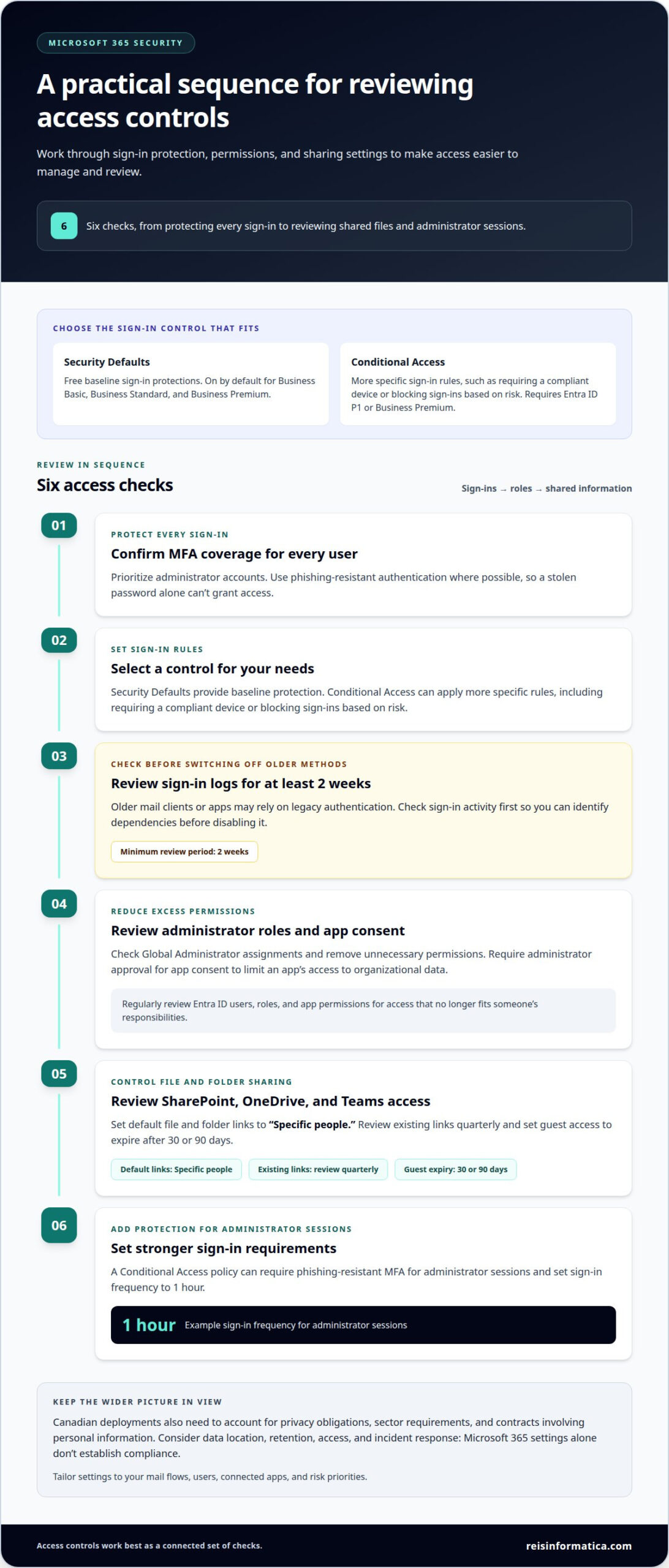
- Confirm MFA coverage for every user. Prioritize administrator accounts and use phishing-resistant authentication where possible, so a stolen password alone can’t grant access.
- Choose the right sign-in control. Entra ID Security Defaults are on by default for Business Basic, Business Standard, and Business Premium. Conditional Access allows more specific rules, such as requiring a compliant device or blocking sign-ins based on risk.
- Review legacy authentication before disabling it. Check Entra ID sign-in logs for at least 2 weeks first, as older mail clients or apps may rely on these sign-in methods.
- Check privileged roles and app consent. Review Global Administrator assignments and remove unnecessary permissions. App consent is permission for an app to access your organization’s data; require administrator approval to limit excessive access.
- Review SharePoint, OneDrive, and Teams sharing. Set default file and folder links to “Specific people,” review existing links quarterly, and set guest access to expire after 30 or 90 days. These steps help limit access to shared business information.
For administrator sessions, a Conditional Access policy can require phishing-resistant MFA and set sign-in frequency to 1 hour. Regular reviews of Entra ID users, roles, and app permissions help identify access that no longer fits someone’s responsibilities.
Deployments must account for privacy obligations, sector requirements, and contracts involving personal information. Assess data location, retention, access, and incident response; Microsoft 365 settings alone do not establish compliance.
What is Microsoft 365 security?
Microsoft 365 security combines identity, data, device, and threat controls across a tenant. Audit logs add an activity record, helping teams investigate events such as unexpected permission changes. Alerts highlight activity that may need attention, while a SIEM can bring security events together for review.
Retention affects how much evidence remains available during an investigation. Microsoft 365 Audit (Standard) records are retained for 180 days. Audit (Premium), included in E5, retains records for one year by default. Microsoft 365 E3 audit logs also have a default retention period of 180 days, while E5 has 365 days. The appropriate retention period depends on investigation needs and industry obligations.
- Enable unified audit logging. This creates a searchable record of activity across Microsoft 365 services, including changes to permissions.
- Set an investigation and retention approach. Retain audit logs for at least 1 year, with longer retention for regulated industries.
- Route relevant events into a SIEM. Correlating Microsoft 365 audit activity with identity and endpoint signals can help investigators see related events together.
- Define alerts for meaningful risks. Prioritize unusual administrator changes, suspicious sign-ins, and unexpected data access to focus attention on potentially harmful activity.
- Review alert handling. Confirm that each alert has an owner and a response process, so threat signals don’t sit unattended.
Microsoft Secure Score tracks security recommendations for Microsoft 365. Review the score monthly, then prioritize recommendations based on business risk, available permissions, and operational impact. A score above 70% is recommended for standard small and medium-sized businesses; regulated industries are advised to target 85% or higher. A score below 50% indicates significant unaddressed vulnerabilities. Treat Secure Score as a prioritization aid, not proof that a tenant is secure.
Microsoft Defender alerts and unified audit records serve different purposes: alerts flag potential threats, while logs support investigation. Connecting both to a SIEM can help build a clearer timeline when a suspicious event affects an Office 365 account or service.
Exchange Online forwarding and domain authentication
Microsoft 365 uses Microsoft Entra ID and OAuth 2.0 for modern authentication. This supports multifactor authentication and access policies; legacy protocols may bypass those protections. A provider can configure and enforce MFA in Microsoft 365 and Microsoft Entra ID. To plan the rollout, they need tenant access, administrator approval, user and app details, and sign-in requirements.
Authentication changes can affect older applications, so review sign-in activity before blocking legacy methods. Microsoft Entra sign-in logs can reveal older protocol use; review device code flow too, especially if users do not need it. Phishing-resistant MFA, such as passkeys or security keys, strengthens administrator sign-ins.
- Block external automatic forwarding. Configure the Microsoft Defender outbound anti-spam policy to prevent Exchange Online from forwarding messages automatically to external domains.
- Authenticate your sending domain. Review DMARC aggregate reports for 4-6 weeks before enforcement. Start with a quarantine policy applying to 25 % of messages, then increase coverage gradually before moving to reject.
- Check connected services. Review Exchange Online, SharePoint, and other apps that send or process email, then investigate unexpected forwarding actions in the audit log.
Microsoft has announced several authentication changes. EWS will be blocked by default for tenants that have not configured it starting October 1, 2026, and permanently disabled in Exchange Online on April 1, 2027. SMTP AUTH with basic authentication is scheduled to be disabled by default for existing tenants at the end of December 2026. Microsoft-provided SMS and voice authentication are scheduled to be retired on February 1, 2027.
These dates make compatibility reviews important. An assessment should identify apps that rely on affected protocols, determine whether they still serve a business need, and plan replacements before access changes. Microsoft Modern Authentication must be enabled for both the tenant and its clients; checking both helps prevent sign-in disruption.
A provider can configure and enforce MFA in Microsoft 365 and Microsoft Entra ID, using tenant access, administrator approval, and details about users, apps, and sign-in requirements. Review sign-in activity for legacy authentication before blocking it, and use phishing-resistant MFA for administrator sign-ins where possible.
Break-glass accounts and least-privilege administration
Emergency access protects a Microsoft 365 tenant if ordinary administrator sign-in fails. Maintain two cloud-only accounts with the Global Administrator role for break-glass access. Protect each with its own FIDO2 security key (using a secure sign-in standard) or passkey, and use a password at least 16 characters long. Keep these accounts reserved for emergencies, not routine administration.
Limit routine access too. Keep Microsoft 365 to two to four Global Administrators to reduce the number of accounts with full control, then give other users only the permissions their jobs require. Role-based access control assigns permissions by job, while delegated permissions let users handle specific tasks, such as user support or billing, without broad control over accounts. Privileged Identity Management (PIM) makes elevated access temporary, with a maximum role activation duration of 8 hours.
- Test emergency access quarterly. Confirm both accounts can sign in and their individual security keys or passkeys work.
- Review administrator assignments. Compare each Global Administrator and delegated role with current job duties, then remove access no longer needed.
- Document the emergency process. Record who may use each account, how access is approved, and where recovery instructions are stored securely.
- Review external access. Check guest identities and sharing controls so external users receive only the document or service access they need.
- Set a permissions baseline. Define which teams can manage users, devices, and security settings, then use that baseline when reviewing role changes.
Break-glass accounts require careful handling: broad privileges can restore administration, but they also increase the impact of misuse. Keep emergency credentials separate from everyday accounts, restrict access, and review sign-in activity after each use. Quarterly tests can uncover access problems before an incident, while PIM limits routine exposure to elevated permissions.
Reisinformatica.com
reisinformatica.com helps Canadian businesses address Microsoft 365 security concerns through cybersecurity services and managed IT services. A professional review can assess how sign-in policies, email protections, administrator access, and information sharing work together, then identify practical priorities for your environment. This support is useful when your team needs help interpreting security gaps, planning configuration changes, or maintaining protections as business needs evolve. The goal is a clearer security baseline and fewer technical decisions left competing for your attention. The right next step depends on your current Microsoft 365 setup, existing controls, and operational requirements. For support with your Microsoft 365 security, contact reisinformatica.com.
Make security part of your operating plan
Security works best as an ongoing business practice, not a project that ends after settings change. As your team, applications, and information needs evolve, revisit priorities and make sure security decisions still support daily work. A Microsoft 365 security assessment can help turn identified gaps into an achievable plan, with clear ownership and sensible next steps.
Reisinformatica.com connects this work with managed IT services, cybersecurity services, and private and public cloud services and products. That wider view can help business leaders consider Microsoft 365 alongside the systems and processes their teams rely on, rather than treating account protection as an isolated task.
Contact reisinformatica.com for security help and discuss a practical path forward for your business. With a clear plan and the right support, you can strengthen security while keeping your team focused on its work.
Frequently Asked Questions
What is the Microsoft 365 security baseline checklist for businesses?
A useful baseline assigns an owner to each essential protection and records its status. Include identity controls, email and domain protection, device safeguards, sharing permissions, audit visibility, backup restoration, and incident response. Document exceptions too, such as a business application that still requires an older sign-in method. This gives leadership a practical view of gaps, dependencies, and decisions needing attention.
What are the recommended Microsoft 365 settings for email security, SPF, DKIM, and DMARC?
Use Microsoft Defender policies to filter spam, malware, and phishing, and restrict automatic external forwarding. Configure SPF to identify approved senders for your domain and DKIM to add a verifiable signature to outgoing messages. DMARC uses these authentication results to guide how messages claiming your domain are handled. Include legitimate services that send email for your business, then review reports before tightening enforcement.
What are the key Microsoft 365 backup, retention, and incident response best practices?
Keep Microsoft 365 data and tenant configuration backups separate from retention policies, then test restoration quarterly. Regulated industries may need to retain backups for 7 or more years. Maintain an incident playbook that names decision-makers, evidence-handling steps, communication responsibilities, and recovery priorities. Run a practice scenario, such as a compromised mailbox, so teams understand how to contain access and restore essential work.
Which Microsoft 365 security features require Business Premium, E3, or E5 licensing, and what do they cost in Canada?
Conditional Access requires Entra ID P1 or Business Premium, and Business Premium includes Defender for Office 365 Plan 1. E3 and E5 offer different audit capabilities; E3 audit logs default to 180 days, while E5 defaults to 365 days. Canadian licence costs depend on the plan, billing arrangement, and added features.
How do you enable and enforce MFA in Microsoft 365 and Microsoft Entra ID?
Enable MFA for every user, prioritizing administrator accounts and phishing-resistant methods where possible. Use Security Defaults, on by default for Business Basic, Business Standard, and Business Premium, or use Conditional Access for tailored rules. Enforcing MFA requires tenant access, administrator approval, and details about users, apps, and sign-in requirements.
How do you configure Microsoft Defender for Office 365 against phishing, malware, and ransomware?
Configure Microsoft Defender policies, Safe Links, and Safe Attachments to help protect email and collaboration tools from phishing, malware, and ransomware. Set policies according to existing mail flows, user needs, connected apps, and your organization’s risk priorities.