
Are your Microsoft 365 sign-in logs filled with failed attempts from countries where you don’t do business? It’s a constant source of anxiety for any IT administrator, knowing that each alert represents a potential threat. The thought of navigating the complex Microsoft Entra admin center to block a country from my 365 account can feel just as daunting, leaving you worried about misconfiguring a policy and locking out your own team.
This guide is designed to eliminate that uncertainty. We provide a clear, step-by-step process to confidently implement Conditional Access policies, effectively securing your tenant from unwanted international logins. You will learn the exact steps to create and apply these rules, understand why you might still see attempted logins, and gain the peace of mind that comes from a significantly stronger security posture. Let’s take control and ensure your critical business data is properly protected.
Key Takeaways
- Learn how geoblocking drastically reduces your company’s exposure to automated global cyber threats, creating a powerful first line of defence.
- Discover the exact steps to block country from my 365 account by creating a Conditional Access policy in the Microsoft Entra Admin Center.
- Understand the essential prerequisites, including the required Microsoft Entra ID P1 license, to ensure a smooth and successful policy implementation.
- Position geoblocking as one critical layer within a robust, multi-faceted security posture to ensure comprehensive protection for your business.
Why You Must Block Unwanted Countries from Microsoft 365
In today’s hyper-connected business environment, your company’s digital perimeter is constantly under assault. The question is no longer if you will be targeted, but when and from where. Automated, global cyberattacks are a daily reality, making a proactive security posture essential for survival. If you’re wondering how to block country from my 365 account, you’re already taking a critical step toward fortifying your defences.
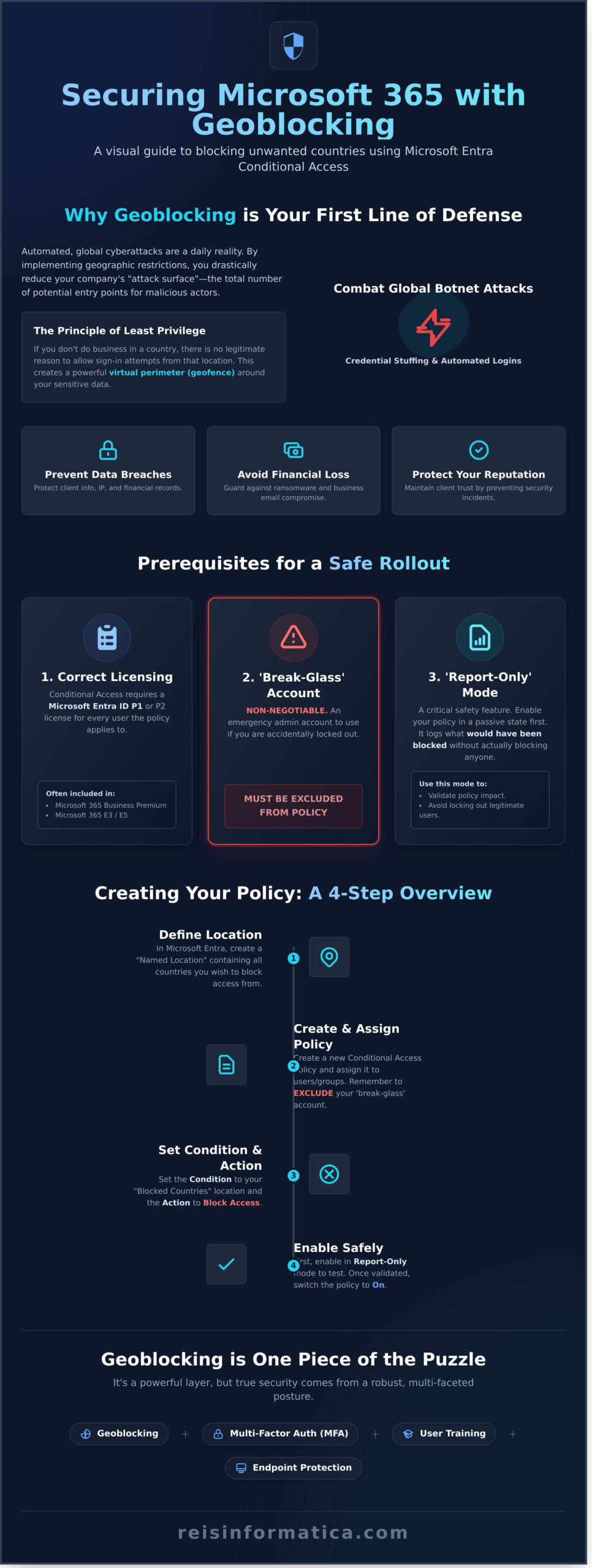
By implementing geographic restrictions, you drastically reduce your company’s “attack surface”-the total number of potential entry points for malicious actors. Every country you block is an entire region of potential threats that can no longer reach your digital front door. This simple, powerful action protects you from significant business risks, including:
- Data Breaches: Unauthorized access leading to the theft of sensitive client information, intellectual property, or financial records.
- Financial Loss: The direct costs associated with business email compromise, ransomware, and regulatory fines.
- Reputation Damage: The loss of client trust and business that follows a public security incident.
These risks are magnified for businesses operating internationally. For example, a specialized law firm for Israeli company entering US market would counsel its clients that cross-border data protection is not just a technical issue, but a critical legal one, where a breach can have severe international consequences.
Fortunately, Microsoft provides a powerful, built-in tool to manage this risk: Conditional Access. It allows you to define precisely who can access your resources and from where, giving you direct control over your security perimeter.
The Modern Threat Landscape: More Than Just Phishing
While phishing remains a threat, the most common attacks against Microsoft 365 accounts are automated and indiscriminate. Cybercriminals deploy global botnets to run credential-stuffing attacks, testing millions of stolen username and password combinations against login portals 24/7. These compromised credentials are cheap and easily available on the dark web. The attackers aren’t targeting your Canadian business specifically; they are simply looking for any unsecured account, anywhere in the world.
Applying the Principle of Least Privilege to Geography
A core concept in cybersecurity is the “principle of least privilege,” which states that a user should only have the absolute minimum permissions necessary to perform their job. We can and must extend this logic to geography. If your company has no employees, clients, or operations in a particular country, there is zero legitimate reason to allow login attempts from that location. This creates a virtual perimeter, or geofence, around your sensitive data. This is why learning to block country from my 365 account is a foundational step in building a modern, proactive security model.
Before You Begin: Prerequisites and Best Practices
Before you implement a policy to block a country from your 365 account, a few preparatory steps are essential. This foundational work ensures a smooth, secure deployment and prevents common errors, such as accidentally locking out your administrative team. Taking these precautions now provides the stability and control your business needs for a successful security enhancement.
Verifying Your Microsoft 365 Licensing
The ability to block access by country is a powerful feature managed through Conditional Access policies in Microsoft Entra ID. This requires a Microsoft Entra ID P1 (or P2) license for every user the policy will apply to. To check your current licensing in Canada:
- Log in to the Microsoft 365 admin center.
- Navigate to Billing > Your products.
- Look for a subscription that includes ‘Microsoft Entra ID Premium P1’ or ‘P2’.
Many Canadian businesses find this license is already included in comprehensive bundles like Microsoft 365 Business Premium or E3/E5. If you don’t have the required license, it can be purchased as a standalone add-on to your existing subscription.
Creating and Excluding an Emergency Access Account
This step is non-negotiable for any organization implementing restrictive access policies. A ‘break-glass’ account is an emergency administrator account that is exempt from your policies. Its sole purpose is to regain access if a misconfiguration accidentally locks everyone else out, acting as your ultimate safety net.
We strongly recommend you create a dedicated, cloud-only global administrator account with:
- A very strong, complex password.
- Multi-factor authentication (MFA) configured.
- Credentials stored securely and offline, accessible to at least two authorized individuals.
Crucially, you must explicitly exclude this account from the Conditional Access policy you create in the following steps.
Understanding ‘Report-Only’ Mode for Safe Deployment
Microsoft provides a critical safety feature called ‘Report-only’ mode. Instead of immediately enforcing a block, this mode allows you to activate the policy in a passive state. It will not block any users but will log every sign-in attempt that would have been blocked, giving you invaluable insight into the policy’s potential impact. For a detailed technical overview, you can consult Microsoft’s guide to blocking access by location while configuring your settings. Before enabling enforcement, you can review the ‘Sign-in logs’ in the Entra ID portal to see which users and applications would be affected. Our recommendation is to run your policy in Report-only mode for at least a week to ensure legitimate access isn’t being disrupted.
Step-by-Step: Creating Your Country-Blocking Policy in Microsoft Entra
Now we move to the core of the configuration. This is where you will build the security policy to block country from my 365 account access. The process is logical and divided into three parts: first, you define the locations you trust; second, you build the policy framework; and third, you apply the specific blocking conditions. Follow these steps precisely for a secure and effective deployment.
Note: We recommend taking screenshots at each major step within the Microsoft Entra admin center to document your configuration.
Part 1: Define Your ‘Allowed’ Countries in Named Locations
Before you can block unwanted countries, you must first tell Microsoft which countries are permitted. This is done by creating a “Named Location,” a group of approved countries you can reference in your policy—for example, including Italy if your team uses travel specialists like Mireabilis for corporate holidays.
- Navigate to the Microsoft Entra admin center.
- In the left-hand menu, go to Protection > Conditional Access.
- Select Named locations from the submenu.
- Click on + Countries location.
- Give your location a descriptive name, such as
Allowed - CanadaorApproved Business Regions. - Select the countries from which your users are authorized to access their accounts. You can select one or multiple countries.
- Click Create to save your new named location.
Part 2: Build the Conditional Access Policy
With your trusted locations defined, you can now construct the Conditional Access policy. This policy is the engine that enforces your security rules. Creating a robust Conditional Access policy is a foundational security measure, a practice strongly endorsed by cybersecurity authorities; in fact, it’s a core component of CISA’s security baseline for Microsoft Entra ID.
- Navigate back to Protection > Conditional Access and select Policies.
- Click + New policy.
- Name your policy clearly, for example,
Block All Non-Canadian Access. - Under Assignments, select Users. Include All users to ensure comprehensive coverage.
- Crucially, click on the Exclude tab and select your emergency “break-glass” administrator account. This step is vital to prevent accidental lockout.
Part 3: Configure Conditions and Access Controls
This is the final and most critical phase, where you connect your named location to the blocking action. This configuration tells the policy to block any sign-in attempt that does not originate from your pre-approved list of countries.
- Under Conditions, select Locations.
- Set the Configure toggle to Yes.
- For the Include option, select Any location. This targets all sign-ins globally.
- For the Exclude option, select Selected locations. Choose the named location you created in Part 1 (e.g.,
Allowed - Canada). - Under Access controls > Grant, select Block access. This is the action that will deny entry from unapproved locations.
- Finally, under Enable policy, select Report-only. Do not turn it on immediately. Report-only mode allows you to monitor the policy’s potential impact in the sign-in logs without disrupting your users. After verifying it works as expected for a few days, you can switch it to On.
Understanding Conditional Access: Beyond the Firewall
A common point of confusion we see on platforms like Reddit is from administrators who have set up a location-based policy but still see failed login attempts from blocked countries in their sign-in logs. This is expected behaviour, and understanding why reveals the true power of Conditional Access. It’s crucial to know that this tool is not a traditional firewall; it doesn’t block the initial attempt from ever reaching Microsoft’s servers.
Think of it like this: a firewall is the main gate to your entire office park, stopping unwanted traffic from even getting close. Conditional Access, however, is the security guard at your specific office door. An individual must first arrive at the door (attempt authentication) and present their key card (credentials). Only then does the guard check their name against an access list (the Conditional Access policy) before granting or denying entry to the office itself.
This process works after a successful authentication but before granting access to your company’s data, which is a critical distinction for security.
Why You Still See ‘Failed’ Logins from China, Russia, etc.
When you implement a policy to block country from my 365 account, you are inserting a crucial checkpoint into the login sequence, but not at the very beginning. The system is working exactly as designed to protect your assets. Here’s the typical flow:
- Credential Check: A user attempts to sign in. Microsoft Entra ID first checks if the username and password are correct.
- Conditional Access Policy Check: If the credentials are valid, Entra ID then evaluates all applicable policies. It sees the user is authenticating from a blocked country.
- Access Denied: The policy is enforced, and access to all resources is blocked. The event is logged as a “failure” under the Conditional Access evaluation, not the initial password check.
Seeing these log entries means your policy is working. It successfully stopped an attacker who may have acquired a legitimate password from using it in an unauthorized location.
Troubleshooting: VPNs, Proxies, and Policy Errors
While effective, location-based policies have limitations. Sophisticated attackers may use VPNs or anonymizing proxies to mask their true location, making their traffic appear to originate from an allowed country like Canada. Furthermore, ensure your policies account for IPv6 traffic if it’s active in your environment. To verify why a policy is or isn’t applying to a specific user, use the powerful ‘What If’ tool within the Microsoft Entra admin center to simulate sign-in scenarios.
A Multi-Layered Approach is Key
Blocking countries is a powerful and necessary step, but it should be just one component of a robust security strategy. Relying on a single policy leaves potential gaps. True digital resilience comes from layering multiple controls, such as enforcing Multi-Factor Authentication (MFA), monitoring for risky sign-ins, and managing device compliance. This is why comprehensive cybersecurity services are vital to creating a security posture that protects your business from all angles, giving you the peace of mind to focus on your operations.
Beyond Geoblocking: Building a Robust M365 Security Posture
Successfully implementing a policy to block country from my 365 account is a powerful and proactive step toward securing your digital environment. However, in the complex Canadian cyber threat landscape, it should be viewed as one strong layer in a multi-faceted defense strategy, not a standalone solution. True digital resilience requires a comprehensive security posture that protects your organization from multiple angles.
Think of geoblocking as a high wall around your property. It effectively stops opportunistic threats from specific regions, but a determined attacker might find other ways in. To secure your M365 tenant completely, you must reinforce this wall with other critical security measures.
The Unskippable Requirement: Multi-Factor Authentication (MFA)
If you implement only one other security control, make it MFA. It is the single most effective defense against credential compromise. While geoblocking stops an attacker from a blocked country, MFA stops anyone, anywhere, who has a stolen password but lacks the second verification factor (like a code from an app or a text message). Together, they create a formidable barrier, ensuring that even if credentials are leaked, your accounts remain secure.
Protecting Endpoints and Monitoring Threats
Your security cannot stop at the cloud. The devices your employees use to access M365-laptops, desktops, and mobile phones-are critical endpoints. Implementing an Endpoint Detection and Response (EDR) solution provides continuous monitoring of these devices for suspicious activity. This is complemented by security awareness training, which empowers your team to recognize and report phishing attempts, turning a potential vulnerability into your first line of human defense.
When to Partner with a Managed Security Provider
Configuring, managing, and continuously monitoring these interconnected security layers is a complex and time-consuming task. It requires dedicated expertise to stay ahead of evolving threats and ensure policies are correctly enforced without disrupting productivity. For most Canadian businesses, dedicating internal resources to this is simply not feasible.
This is where a managed service provider becomes a strategic partner, not just a vendor. We take on the full responsibility of managing your M365 security, from policy configuration to 24/7 threat monitoring. Expert managed IT services ensure these policies are always optimized and monitored, giving you the peace of mind to focus on what you do best: running your business.
Beyond Geoblocking: Securing Your Business’s Future
You now have the knowledge to significantly enhance your organization’s security by implementing a geoblocking policy. As we’ve shown, learning how to block country from my 365 account is a critical, proactive step to reduce your attack surface and prevent unauthorized access from high-risk regions. Remember that this powerful tool, configured through Microsoft Entra, is most effective when part of a larger, multi-layered security strategy.
While configuring these policies is a great start, true digital peace of mind comes from a holistic and expertly managed approach. As a proactive IT partner for Canadian businesses, Reis Informática provides comprehensive cybersecurity and cloud solutions, backed by 24/7 monitoring and support. We handle the complexities of your IT infrastructure so you can focus on what matters most: growing your business.
Let us be your vigilant partner in cybersecurity. Secure Your Business with Expert Cybersecurity Management and build a resilient defense for tomorrow’s challenges.
Frequently Asked Questions
What Microsoft 365 license do I need to use Conditional Access?
To utilize Conditional Access for location-based blocking, your organization requires a Microsoft Entra ID P1 license. This crucial security feature is included in plans such as Microsoft 365 Business Premium, E3, and E5. This licensing unlocks the tools necessary to enforce granular access controls, providing a powerful layer of defense for your digital assets and giving you peace of mind. It’s a foundational component for a modern, proactive security strategy.
Can I block just one specific country instead of allowing a list?
Yes, you have precise control. Instead of defining a long list of allowed countries, you can create a Conditional Access policy that specifically targets and blocks access from a single country or a small group of high-risk nations. This targeted approach is highly efficient for organizations that want to block a country from their 365 account without disrupting access from all other international locations. It allows you to surgically address specific threats while maintaining global accessibility.
How will this policy affect my employees who are traveling internationally?
Employees traveling to a blocked country will be denied access, which confirms the policy is working. To prevent disruption, you must plan ahead. We recommend temporarily excluding traveling users from the policy or instructing them to connect through a trusted corporate VPN. This proactive approach ensures your team remains productive and secure while abroad, maintaining both operational continuity and your established security controls. Clear communication before travel is essential for a smooth experience.
How can I test my country-blocking policy without locking users out?
Microsoft provides a safe and effective way to test your policy using “Report-only” mode. When enabled, this mode doesn’t enforce the block but logs all sign-in attempts that would have been affected. This allows you to monitor the policy’s potential impact in the Microsoft Entra ID audit logs and refine it without risking accidental lockouts. It’s a critical step to validate your configuration, ensuring a smooth and predictable rollout for your entire organization.
Is blocking countries by itself enough to secure my Microsoft 365 account?
While the decision to block a country from your 365 account is an excellent security enhancement, it should not be your only defense. It is one layer in a comprehensive “defense-in-depth” strategy. For true peace of mind, this policy must be combined with other essential security measures like multi-factor authentication (MFA), strong password policies, and endpoint management. A multi-layered approach ensures your organization is protected against a wide range of sophisticated threats.
What is the difference between Azure Active Directory and Microsoft Entra ID?
Microsoft Entra ID is the new name for Azure Active Directory (Azure AD). In 2023, Microsoft rebranded its identity and access management solutions under the “Microsoft Entra” family to create a more unified product suite. Functionally, the product you use to manage users, groups, and Conditional Access policies remains the same. This is simply a name change, and all the features you relied on in Azure AD are present in Microsoft Entra ID.
Can users bypass this policy with a VPN?
Yes, a user with a commercial VPN service can potentially bypass a location-based policy. A VPN can mask a user’s real IP address, making it appear as if they are connecting from an approved country. This is why country blocking is just one part of a complete security strategy. Combining it with multi-factor authentication (MFA) and device compliance checks creates a much stronger defense, as a threat actor would need more than just a masked location to gain access.